Stripe
How to set up and use Stripe for payments and subscriptions
MinuteShip uses Stripe for payment processing, supporting both one-time payments and subscriptions.
Setup
MinuteShip template provides three pricing plans by default: a free plan, a pro subscription plan (monthly/yearly), and a lifetime plan (one-time payment). Follow these steps to set up:
Create Stripe Account
Create a Stripe account at stripe.com.
Get API Keys
Get your API keys from the Stripe Dashboard:
- Go to Stripe Dashboard >
Developers>API keys - Copy the secret key (Note: test mode starts with
sk_test_, production mode starts withsk_live_) - Save it to your environment file as
STRIPE_SECRET_KEY
Set Up Webhook
Set up Webhook and get your Webhook secret:
- Go to Stripe Dashboard >
Developers>Webhooks - Click
Add endpoint - Enter Webhook URL:
https://YOUR-DOMAIN.com/api/webhooks/stripe - Select events to listen for:
invoice.paidcheckout.session.completedcustomer.subscription.createdcustomer.subscription.updatedcustomer.subscription.deletedcharge.refunded
- Click
Revealto view the Webhook signing secret (starts withwhsec_) - Save it to your environment file as
STRIPE_WEBHOOK_SECRET
Create Products and Pricing Plans
Create products in Stripe and set up pricing plans:
- Go to Stripe Dashboard >
Product Catalog - Create the Pro subscription plan product:
- Click
Add product - Name:
Pro Plan - Description:
Premium features with subscription pricing - Add monthly price:
- Click
Add price - Price: $9.90 (currency: USD)
- Recurring: Monthly
- Save and copy the Price ID (starts with
price_), this will be used forVITE_STRIPE_PRICE_PRO_MONTHLY
- Click
- Add yearly price:
- Click
Add price - Price: $99.00 (currency: USD)
- Recurring: Yearly
- Save and copy the Price ID (starts with
price_), this will be used forVITE_STRIPE_PRICE_PRO_YEARLY
- Click
- Click
- Create the Lifetime plan product:
- Click
Add product - Name:
Lifetime Plan - Description:
One-time payment for lifetime access - Add price:
- Price: $199.00 (currency: USD)
- Type: One-time
- Save and copy the Price ID (starts with
price_), this will be used forVITE_STRIPE_PRICE_LIFETIME
- Click
Add Environment Variables
Add the following environment variables:
.env
# Payment provider
VITE_PAYMENT_PROVIDER=stripe

STRIPE_SECRET_KEY=sk_test_...
STRIPE_WEBHOOK_SECRET=whsec_...

# Price plans
VITE_STRIPE_PRICE_PRO_MONTHLY=price_...
VITE_STRIPE_PRICE_PRO_YEARLY=price_...
VITE_STRIPE_PRICE_LIFETIME=price_...
Update Website Configuration
Update the payment section in src/config/website.ts to configure pricing plans — amounts, currencies, intervals, and plan metadata. The enable, provider, and priceId fields are automatically resolved from your environment variables (VITE_PAYMENT_PROVIDER and VITE_STRIPE_PRICE_*), so you don't need to hardcode them.
You must configure this section to match the products and prices you created in Stripe:
src/config/website.ts
payment: {
  enable: isPaymentEnabled,              // ← auto: true when VITE_PAYMENT_PROVIDER is set
  provider: isPaymentEnabled ? paymentProvider : undefined, // ← auto: 'stripe'
  price: {
    plans: {
      free: {
        id: 'free',
        prices: [],
        isFree: true,
        isLifetime: false,
      },
      pro: {
        id: 'pro',
        prices: [
          {
            type: 'subscription',
            priceId: priceIds.proMonthly,  // ← auto: from VITE_STRIPE_PRICE_PRO_MONTHLY
            amount: 990,                   // amount in cents ($9.90)
            currency: 'USD',
            interval: 'month',
          },
          {
            type: 'subscription',
            priceId: priceIds.proYearly,   // ← auto: from VITE_STRIPE_PRICE_PRO_YEARLY
            amount: 9900,                  // amount in cents ($99.00)
            currency: 'USD',
            interval: 'year',
          },
        ],
        isFree: false,
        isLifetime: false,
        popular: true,
      },
      lifetime: {
        id: 'lifetime',
        prices: [
          {
            type: 'one_time',
            priceId: priceIds.lifetime,     // ← auto: from VITE_STRIPE_PRICE_LIFETIME
            amount: 19900,                  // amount in cents ($199.00)
            currency: 'USD',
            allowPromotionCode: true,
          },
        ],
        isFree: false,
        isLifetime: true,
      },
    },
  },
},
Note
If you are setting up your environment, you can now go back to the Environment Configuration and continue. The rest of this document can be read later.
- Environment Configuration: Set up environment variables
Core Features
- One-time payment for lifetime membership
- Recurring subscription payments (monthly/yearly)
- Free trial period support
- Subscription management with customer portal integration
- Webhook handling for payment events
- Subscription status tracking and verification
- Built-in pricing components (table, card, button)
- Server-side actions for secure payment operations
- Multiple pricing plan support (free, pro, lifetime)
Development
For local development, you can use the Stripe CLI to forward events to your local server:
Install the Stripe CLI, then log in to the same Stripe Test Mode account used by STRIPE_SECRET_KEY:
stripe login
Forward events to your local server:
stripe listen \
  --skip-update \
  --events checkout.session.completed,customer.subscription.created,customer.subscription.updated,customer.subscription.deleted,invoice.paid,charge.refunded \
  --forward-to http://localhost:3000/api/webhooks/stripe
The CLI prints a temporary webhook signing secret. Copy it to .env.local and restart the development server:
STRIPE_WEBHOOK_SECRET=whsec_...
The template also includes a Stripe Test Mode E2E suite:
pnpm e2e:stripe
Payment Confirmation and Event Ordering
invoice.paid is the authority for a successful Stripe payment. checkout.session.completed creates the local payment context, but it does not grant access by itself.
Stripe does not guarantee event order. If invoice.paid arrives first, MinuteShip reconstructs the Checkout Session and creates the paid row during that delivery. The payment result page then finds the row by Checkout Session ID and the signed-in user; it does not need to wait for a later Stripe retry.
This also covers a fully discounted Lifetime checkout. A zero-cost order has no PaymentIntent, so MinuteShip matches it through the generated Invoice and customer instead.
Webhook Responses and Retries
| Result | HTTP status |
|---|---|
| Payment is disabled | 200 |
| Stripe is not the configured payment provider | 404 |
Missing payload or Stripe-Signature header | 400 |
| Invalid signature | 400 |
| Successfully processed or safely duplicated | 200 |
| Temporary Stripe API or database failure | 500 |
MinuteShip returns 500 for temporary failures so Stripe can retry the event. Duplicate deliveries are handled idempotently.
Customer Portal
The Stripe Customer Portal provides a hosted portal for customers to manage their subscriptions. You can customize the appearance and available features.
- Go to Stripe Dashboard >
Settings>Billing>Customer Portal - Customize the content displayed in the customer portal, for example, you can add a custom logo and title
- Click
Save changesto save the portal configuration
Production
- Go to Stripe Dashboard > Developers > Webhooks
- Click
Add endpoint - Enter Webhook URL:
https://YOUR-DOMAIN.com/api/webhooks/stripe - Select events to listen for:
invoice.paidcheckout.session.completedcustomer.subscription.createdcustomer.subscription.updatedcustomer.subscription.deletedcharge.refunded
- After creation, click
Revealto view the webhook signing secret - Copy the webhook signing secret (starts with
whsec_) and add it to your environment variables
Note
A full refund for a Lifetime purchase revokes only the matching order and marks it canceled. A partial refund keeps access. Keep
charge.refundedenabled or refund state will not reach MinuteShip.
Test Cards
To test Stripe integration, use Stripe's test mode and test credit cards:
- 4242 4242 4242 4242 - Successful payment
- 4000 0000 0000 3220 - Requires 3D Secure authentication
- 4000 0000 0000 9995 - Insufficient funds failure
You can find more about Stripe test cards in the Stripe documentation.
Creating Invoices
MinuteShip has invoice creation configured for one-time payments.
src/payment/provider/stripe.ts
// Automatically create invoice for one-time payments
checkoutParams.invoice_creation = {
  enabled: true,
};
If you want to automatically send paid invoices, you can enable it in Customer emails settings, under Email customers about, select Successful payments. After that, you can access invoices in Stripe Dashboard > Invoices.
You can find more about automatically sending paid invoices in the Stripe documentation.
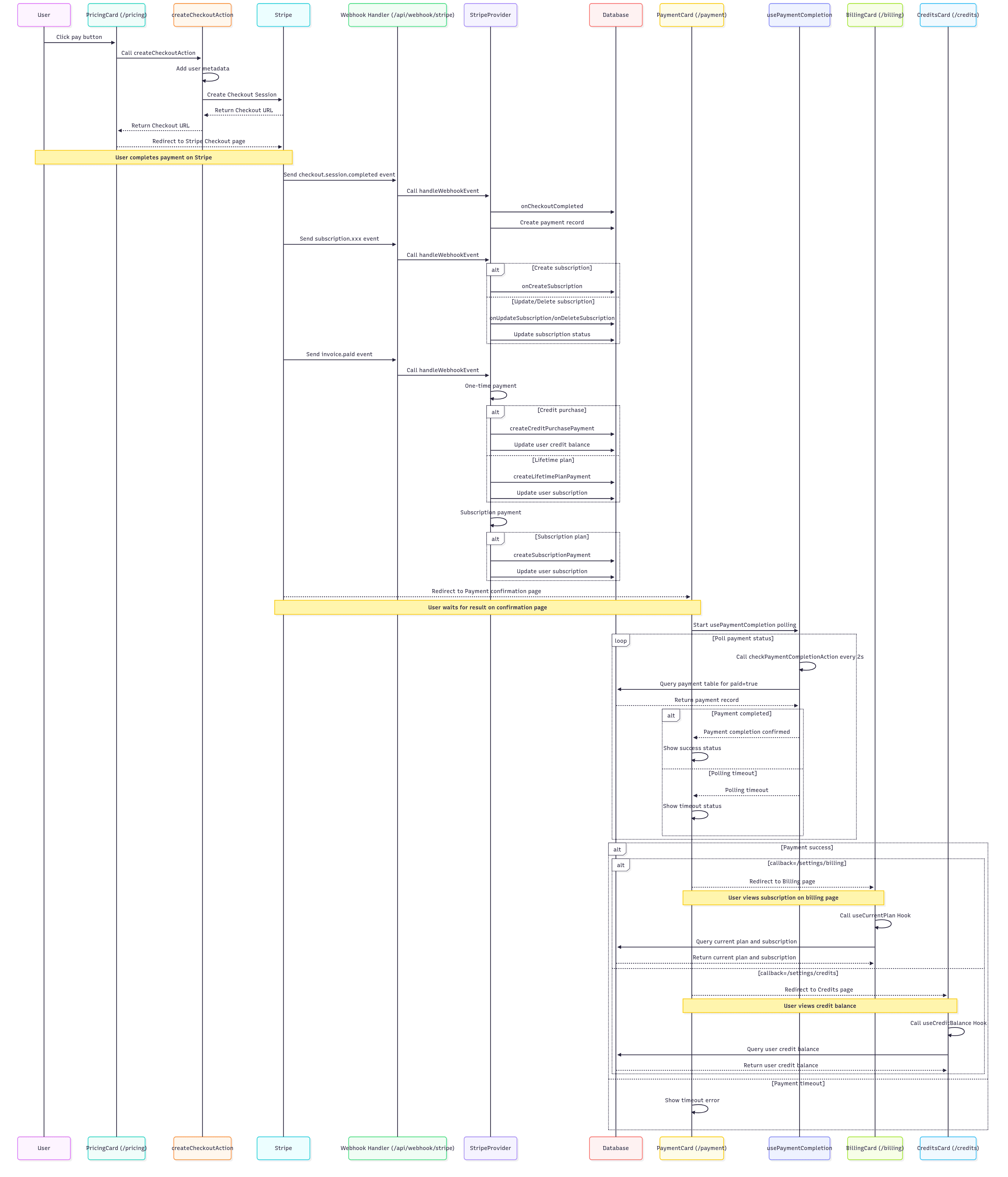
Payment Flow Diagram
This is the complete payment flow diagram.
FAQ
How to activate WeChat Pay and Alipay?
You can activate WeChat Pay and Alipay in Stripe Dashboard > Settings > Payment methods. You can find more about WeChat Pay and Alipay in the Stripe documentation.
How to limit users to only one subscription?
You can enable Limit customers to 1 subscription in Stripe Dashboard > Settings > Checkout and Payment Links > Subscriptions. You can find more about limiting customers to one subscription in the Stripe documentation.
Best Practices
- Protect API keys: Never expose your Stripe secret key in client-side code
- Validate webhook signatures: Always verify the signature of webhook events
- Handle errors gracefully: Provide user-friendly error messages when payments fail
- Test webhooks thoroughly: Ensure all webhook events are handled correctly