Social Media
Configuring social media links
Manages social media links displayed on the website, each item is MenuItemConfig.
src/config/social-config.ts
export function getSocialLinks(): MenuItemConfig[] {
  const social: MenuItemConfig[] = [];
  const config = websiteConfig.social;

  if (config?.github) {
    social.push({
      title: 'GitHub',
      href: config.github,
      icon: IconBrandGithubFilled,
      external: true,
    });
  }

  // Additional social links: twitter, blueSky, mastodon,
  // discord, youtube, linkedin, facebook, instagram,
  // tiktok, telegram...

  const supportEmail = getMailtoUrl(websiteConfig.mail?.supportEmail);
  if (supportEmail) {
    social.push({
      title: 'Email',
      href: supportEmail,
      icon: IconMailFilled,
      external: true,
    });
  }
  return social;
}
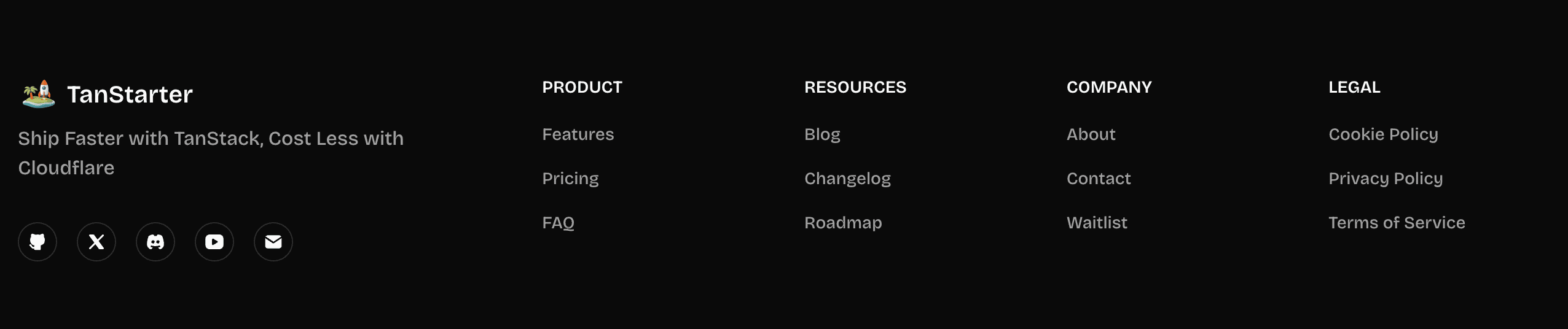
The function dynamically generates social media links based on the URLs provided in the website.ts configuration, and also appends an email link if a support email is configured.
Next Steps
Now that you understand the social media configuration, explore these related topics:
- Website Configuration: Configure core settings for your MinuteShip website
- Footer Configuration: Configure the links in the website footer
- Avatar Configuration: Configure the user avatar dropdown menu
- Sidebar Configuration: Configure the navigation menu for dashboard